
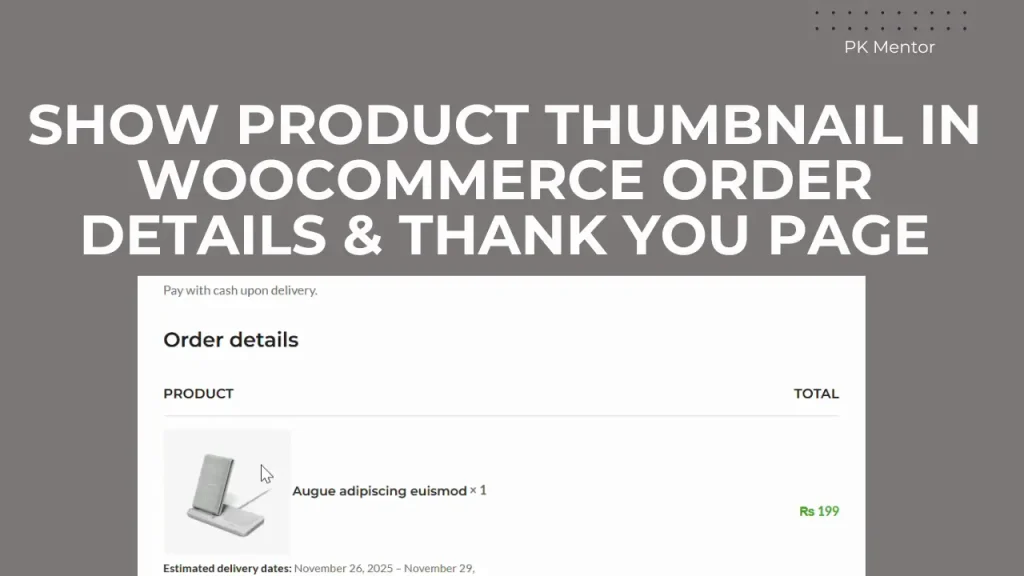
When a customer completes an order, WooCommerce shows a list of purchased products without any images—just the text name. This default setup works, but it’s not very user-friendly.
In this guide, I’ll show you how to add product thumbnail images to the WooCommerce Thank You page and My Account > Order Details page using a simple PHP code snippet. No plugin required!
This improvement helps customers quickly recognize the items they bought and enhances the overall shopping experience.
Why Show Product Thumbnails in WooCommerce Order Details?
Displaying product images after checkout helps with:
Better user experience
Customers immediately recognize the products they purchased.
Reduced order confusion
Thumbnails remove ambiguity when buying similar or multiple items.
More professional checkout flow
Your store feels polished and more trustworthy.
No extra plugins needed
A few lines of code achieve everything.
Step-by-Step: Add Product Thumbnails With Code
You can add the following code into:
functions.php
add_filter( 'woocommerce_order_item_name', function( $item_name, $item ) {
    $product = $item->get_product();
    if ( $product ) {
        $thumbnail = $product->get_image( 'thumbnail' );
        $item_name = $thumbnail . ' ' . $item_name;
    }
    return $item_name;
}, 10, 2 );
What this code does:
- WooCommerce product thumbnails in order details
- Retrieves the purchased product object
- Loads its thumbnail image
- Displays the thumbnail before the product title
- Works automatically on:
- Thank You Page
- My Account > Orders > View Order
- Order Confirmation Email (optional depending on styling)
Frequently Asked Questions
1. Does this work with all themes (WoodMart, Astra, Flatsome, etc.)?
Yes. The snippet uses a native WooCommerce hook that works with any theme.
2. Will the image show in emails?
Some themes allow it, but email templates may need extra styling.
3. Can I change the thumbnail size?
Yes, replace ‘thumbnail’ with ‘medium’ or a custom size.
4. Will this slow down my website?
No, it loads only one small image per product item.
