Slider Revolution is one of the most efficient and popular WordPress plugins for making responsive sliders, hero sections, carousels, and more. But the real magic happens when you unlock the Premium Templates that come with it. In this post, I’ll explain how to access Slider Revolution Premium Templates, even if your plugin is bundled with a theme, and I’ll give you a step-by-step guide to import and use them on your WordPress website.
There are two main ways to access Premium Templates in Slider Revolution:
1. Purchase from CodeCanyon
When you buy Slider Revolution from CodeCanyon, you get a purchase code. This license unlocks all premium templates and features directly inside the plugin dashboard.
2. Contains a Premium Theme
Slider Revolution is a free feature of some WordPress themes. However, unless you use a separate licensing key to activate the plugin, these versions do not come with premium templates.
3. Using a GPL Version
You may use a GPL version of the plugin. In my case, I have a business account on Envato, giving me access to officially licensed templates and themes.
If you want to explore this plugin or need access, contact us — I provide guidance and support using verified sources only.
How to Import Slider Revolution Premium Templates (Step-by-Step)
Note: You need a licensed or activated version of the plugin to import premium templates.
Step 1: Install and Activate Slider Revolution
Navigate to Plugins -> Add New and upload the Slider Revolution. Activate the plugin after installation.
If you’ve purchased Slider Revolution directly, enter your purchase code under Slider Revolution -> Registration.
Step 2: Access the Template Library
Once the plugin activated, Navigate to Slider Revolution > New module from Template.
Here, you will find a variety of categorized templates. With some of the slider you need to install the Slider Revolution Add-On.
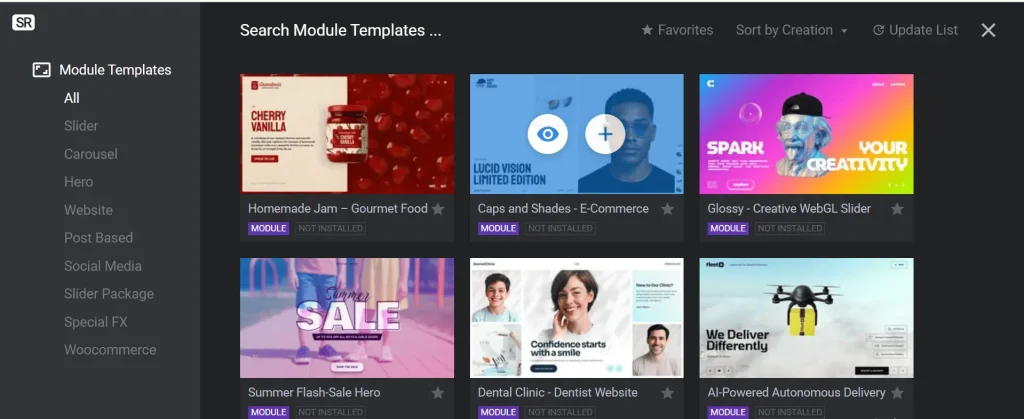
Step 3: Import a Template
Go to Slider Revolution > click on the blank module and add the slide and import it from templates. The plugin will download and load it into your project list.

Step 5: Customize Your Slider Revolution Premium Templates
You need to click on the imported template. Use the drag-and-drop editor to adjust:
- Images
- Text layers
- Buttons
- Animations
- Responsiveness
Step 6: Add Slider to Your Page or Post
Use the provided short code or slider revolution widget to display the slider on your desired page.
Using Slider Revolution Premium Templates is a smart way to make your website look modern and professional — without needing a designer or custom code.
If you’re using a bundled version or a GPL plugin and want access to the full premium features, make sure to use a verified license or contact us for assistance with setup and support.